Audio Normalizer
Make jingles, DJ drops, podcast intros, and radio ads louder and more consistent.
No generation creditsFast browser editsDownload ready
ToolUpload - Settings - Export
Normalize
Add audio, choose one edit, then export the finished version for your jingle workflow.
Exporting uses your daily audio edit limit.
No generation credits used
Exporting counts as 1 audio edit.
1
Add your audio
Upload a file or open this tool from My Projects.
2
Preview
Check the source and processed result before downloading.
Upload audio or open this tool from a generated jingle, DJ drop, sung hook, or radio ad.
3
Settings and export
Upload audio first to unlock this step.
Preset
Exporting counts as 1 audio edit.
What this tool fixes
Make generated audio louder and more consistent
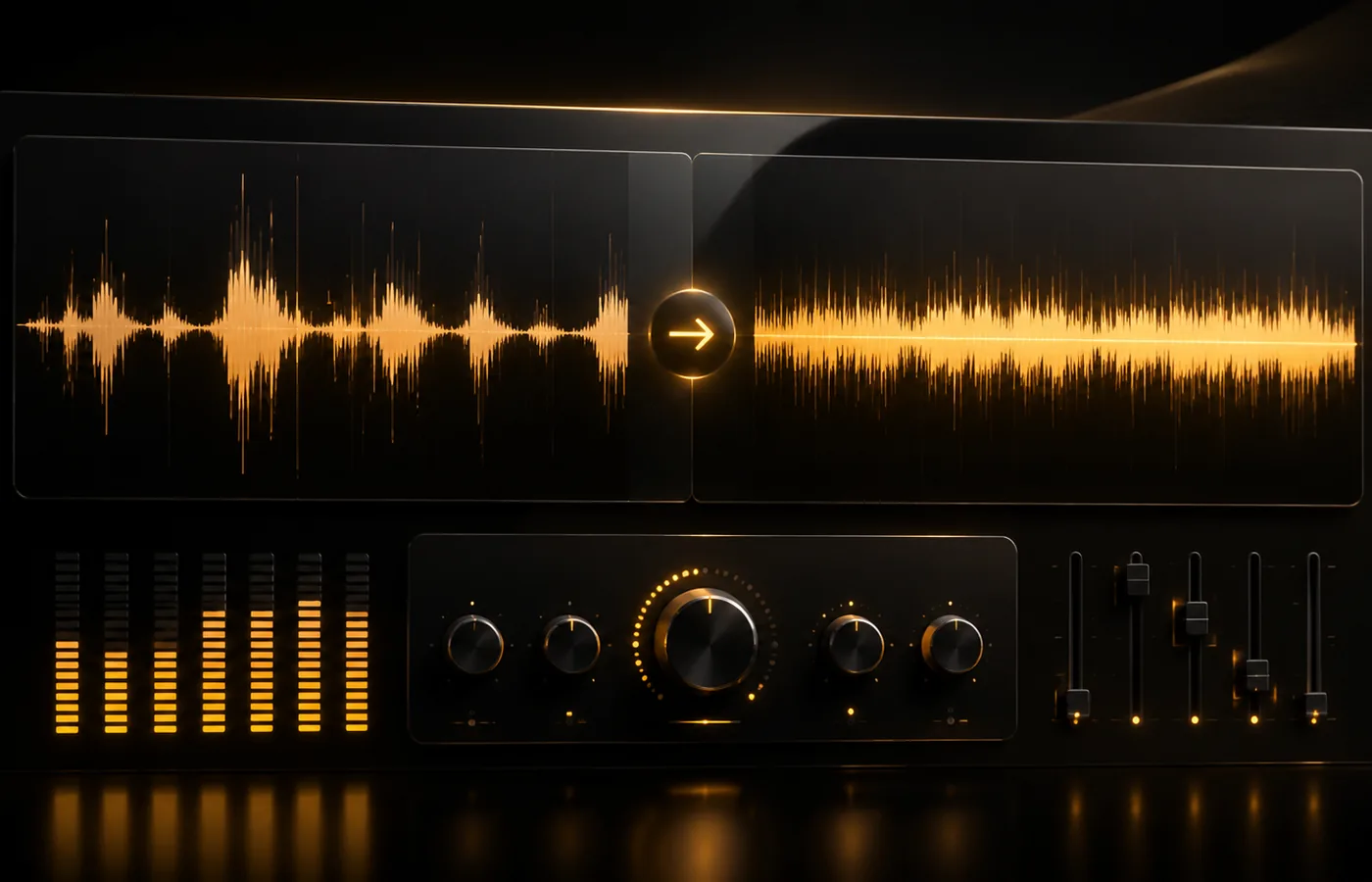
Use the Audio Normalizer when a jingle, DJ drop, podcast intro, or radio ad sounds too quiet, too loud, or uneven. Normalize the final clip before sharing or publishing.
Best for
Real fixes after generation
Make DJ drops hit louder
Balance radio ad voice volume
Improve sung jingle loudness
Match volume across multiple clips
How it works
Upload, adjust, export
1Upload or load generated audio
2Choose a loudness preset
3Preview, export, and download
Tips
Better results
Normalize after trimming, not before.
Use this when a file sounds too quiet beside other clips.
If the original audio is distorted, normalize will not fully repair it.
Audio workflow
No audio yet? Create one first.
Start with a generated jingle, DJ drop, sung hook, or radio ad, then come back here to polish the final audio.
AI Jingle Maker
Start with the main guided jingle workflow.
Open
DJ Drops
Create DJ name drops, intro tags, and voice tags.
Open
Sung Jingle Generator
Create vocal jingles with lyrics, melody, and sung hooks.
Open
Radio Ad Generator
Create short radio commercials with offer and CTA structure.
Open
Radio Jingle Generator
Create spoken jingles, station IDs, and voiceover-style liners.
Open
FAQ
Quick answers
Does the normalizer use AI generation credits?
No. This tool does not use generation credits. Exporting may count toward your audio edit limit.
Will this make audio clearer?
It mainly evens out loudness. It cannot fully repair distorted or noisy audio.
Should I normalize every jingle?
Normalize when the final clip feels too quiet, too loud, or uneven beside your other audio.
Should I normalize before or after trimming?
Trim first, then normalize the final version you plan to download.