Audio Trimmer
Trim jingles, DJ drops, radio ads, sung hooks, and MP3 files to short usable sections.
No generation creditsFast browser editsDownload ready
ToolUpload - Settings - Export
Trim
Add audio, choose one edit, then export the finished version for your jingle workflow.
Exporting uses your daily audio edit limit.
No generation credits used
Exporting counts as 1 audio edit.
1
Add your audio
Upload a file or open this tool from My Projects.
2
Preview
Check the source and processed result before downloading.
Upload audio or open this tool from a generated jingle, DJ drop, sung hook, or radio ad.
3
Settings and export
Upload audio first to unlock this step.
Timeline--
Quick presets
Exporting counts as 1 audio edit.
What this tool fixes
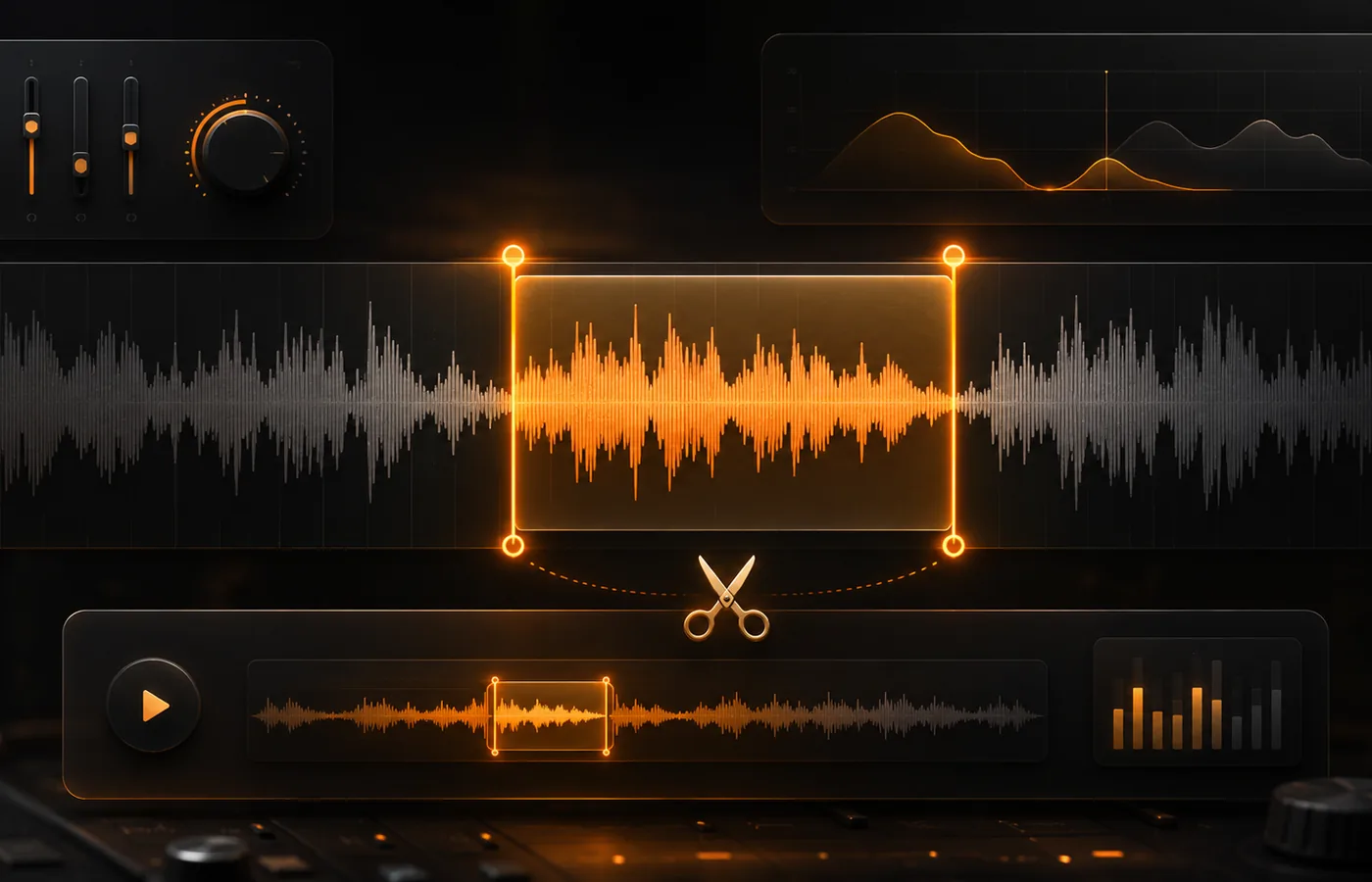
Cut the best part of your generated audio
Use the Audio Trimmer to cut generated jingles, DJ drops, sung hooks, and radio ads into shorter usable clips. Create 5-second, 10-second, 15-second, or 30-second versions without regenerating.
Best for
Real fixes after generation
Trim the best hook from a sung jingle
Cut a DJ drop shorter
Trim a radio ad to 15s or 30s
Remove unwanted beginning or ending parts
How it works
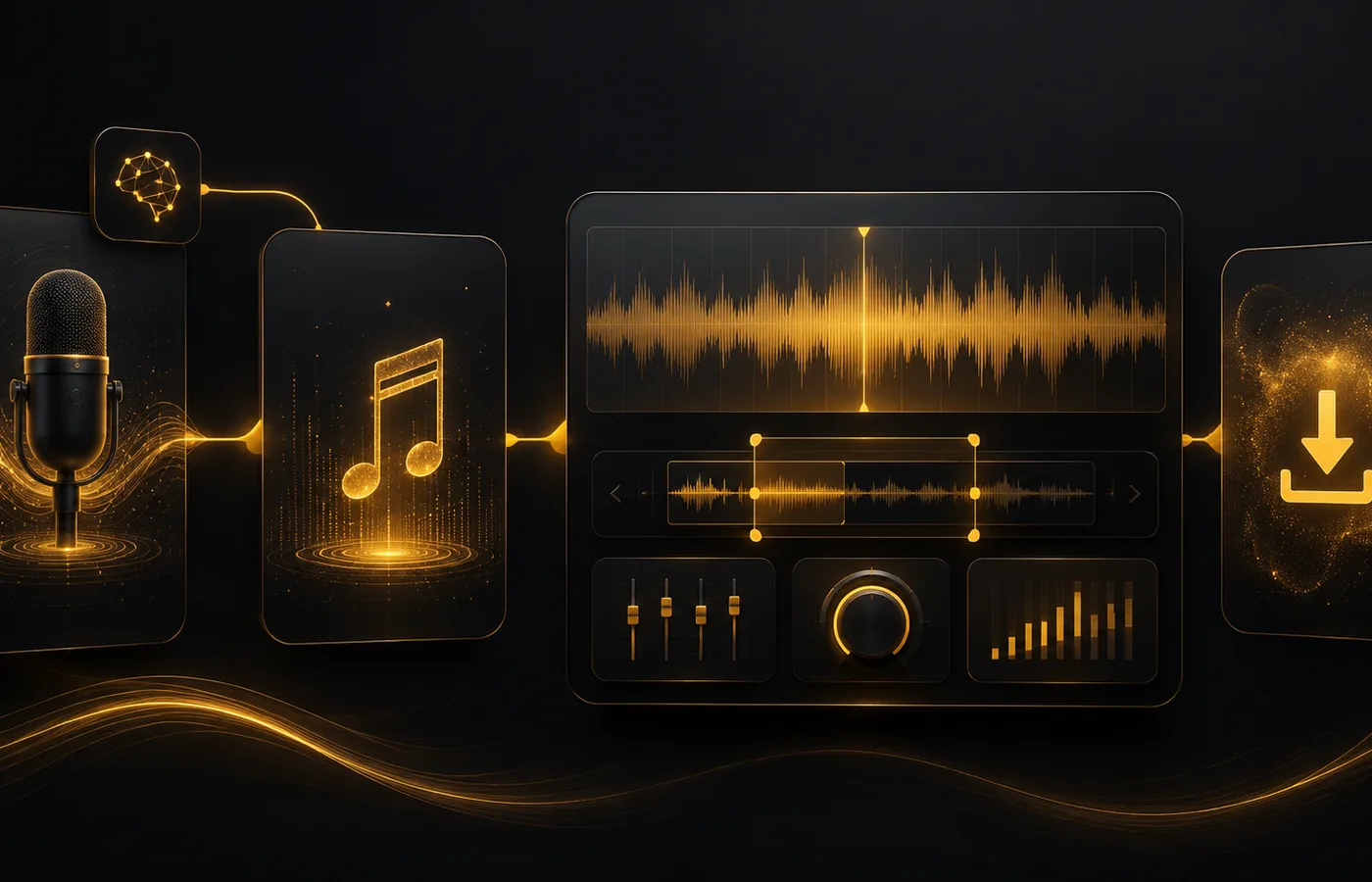
Upload, adjust, export
1Upload or load generated audio
2Set the start and end time
3Preview, export, and download
Tips
Better results
Leave a tiny bit of room before the first word or beat.
For ads, aim near 15, 30, or 60 seconds.
Trim first, then normalize or fade the final clip.
Audio workflow
No audio yet? Create one first.
Start with a generated jingle, DJ drop, sung hook, or radio ad, then come back here to polish the final audio.
AI Jingle Maker
Start with the main guided jingle workflow.
Open
DJ Drops
Create DJ name drops, intro tags, and voice tags.
Open
Sung Jingle Generator
Create vocal jingles with lyrics, melody, and sung hooks.
Open
Radio Ad Generator
Create short radio commercials with offer and CTA structure.
Open
Radio Jingle Generator
Create spoken jingles, station IDs, and voiceover-style liners.
Open
FAQ
Quick answers
Does the audio trimmer use AI generation credits?
No. This tool does not use generation credits. Exporting may count toward your audio edit limit.
Should I trim before normalizing?
Usually yes. Cut the final section first, then normalize the finished clip.
Can I make 10-second or 15-second clips?
Yes. Use the time fields or quick presets to cut short versions for ads, hooks, and drops.
Can I trim generated jingles from My Projects?
Yes. Open the tool from an eligible generated jingle, DJ drop, sung hook, or radio ad when available.